Upgrading to a smart home ecosystem is incredibly rewarding, but it can occasionally present technical hiccups. If you are reading this, you are likely wondering how to reset Nest thermostat devices safely and effectively.
As a smart home technician who has installed and troubleshot hundreds of HVAC controllers, I understand the frustration of an unresponsive screen. Sometimes, these advanced devices get stuck, lose their WiFi connection, or simply need a fresh start.
Learning how to reset your thermostat is a fundamental skill for any homeowner. It is the most reliable troubleshooting step you can take before calling in expensive professional help.
This comprehensive guide will walk you through the entire process, whether you need a simple reboot or a complete wipe. We will cover the differences between restarting and resetting, ensuring you do not accidentally delete your customized schedules.
A Google Nest Thermostat is a robust piece of technology, but like any computer, it benefits from occasional maintenance. Let’s dive into the expert methods to get your climate control system back on track.
What Does a Thermostat Reset Do?
Before pressing any buttons, it is crucial to understand what is happening behind the screen. Many users ask me, What does a thermostat reset do?
A reset essentially forces the device’s internal software to halt its current operations and start over. Depending on the type of reset you choose, it can do a few different things.
A standard reset clears out minor software bugs and memory glitches without erasing your personal data. It forces the device to reconnect to your home network, often fixing temporary communication errors.
On the other hand, if you are wondering what will happen if I reset my Nest thermostat entirely, the answer is a blank slate. A full factory reset wipes all personal settings, custom schedules, and WiFi credentials.
It physically disconnects the device from your Google Home account. This makes it perform exactly as it did the day you took it out of the original packaging.
When Should You Reset Your Nest Thermostat?
You should not hit the reset button every time your house feels a degree too cold. Knowing the right situations to perform this action will save you a lot of setup time.
If your device is completely unresponsive to touch or the dial will not turn the screen on, it is time for action. This frozen state is a classic sign that the internal memory needs a quick reboot.
Another common scenario is moving to a new home or selling your current property. You absolutely must wipe your personal data and Wi-Fi credentials before handing the hardware over to strangers.
If you have recently changed your internet service provider or bought a new router, you might face connectivity issues. A network reset is usually required to get the device communicating properly again.
Finally, if the system is ignoring your schedule or blowing cold air when it should be heating, a software wipe might be necessary. Resetting clears corrupted files that might be confusing your HVAC system.
Restart vs Reset: What’s the Difference?
Understanding the terminology is half the battle in smart home troubleshooting. Many homeowners confuse restarting with resetting, which leads to accidental data loss.
Let’s clarify the difference so you can choose the correct path for your specific problem.
Restart (Soft Reset)
A restart is exactly like turning your smartphone off and on again. It is a safe, non-destructive process that takes less than two minutes.
This method keeps all your settings, schedules, and account links perfectly intact. It simply flushes the temporary memory to resolve minor freezing or lagging issues.
Factory Reset (Hard Reset)
A factory reset is the nuclear option. It deletes absolutely everything stored on the physical device.
Once you confirm a hard reset, your schedules, Eco temperatures, and learning history are permanently gone. You will need to go through the initial setup process from scratch once the device reboots.
How to Restart Nest Thermostat (All Models)
If you are dealing with a minor glitch, learning how to restart Nest thermostat devices is your first line of defense. This soft reboot is completely safe and will not erase your hard-earned temperature schedules.
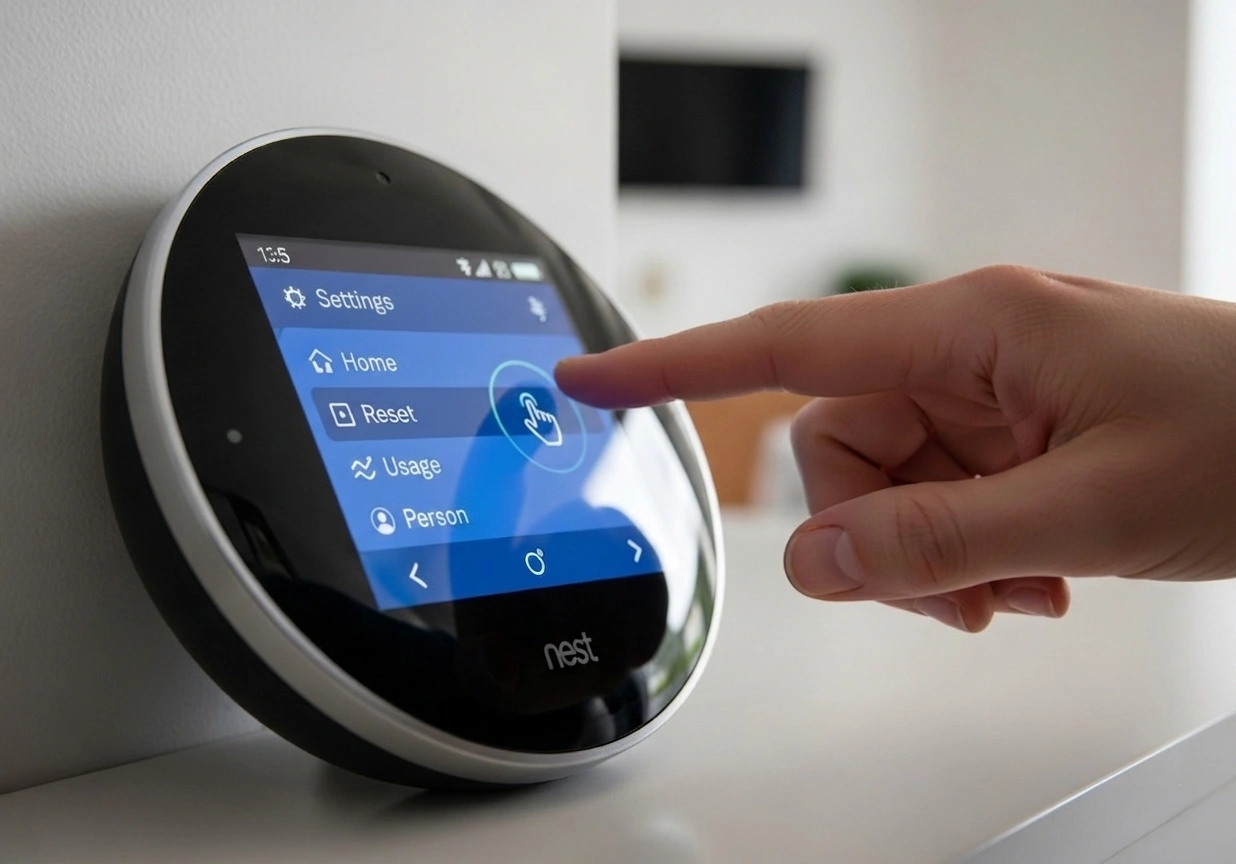
To perform a manual reboot directly on the wall unit, start by pressing the main thermostat ring inward. This will open the main menu on your display.
Turn the ring to scroll through the options until you highlight the Settings gear icon, then press to select it.
Scroll all the way to the right until you find the Reset option and press the ring again. Do not worry; pressing this will not immediately wipe your data.
In the next menu, scroll until you find Restart and select it. The screen will ask you to confirm your choice.
Select OK, and the thermostat will begin its shutdown sequence. The screen will go dark for a few moments, and you will eventually see the Google logo as it powers back on.
Restarting from the App
Many users ask about how to restart the Nest thermostat from the app interface. Unfortunately, Google currently requires you to perform system restarts directly on the physical device.
If your device is completely frozen and you cannot navigate the menu, simply pull the display straight off the wall base. Wait about ten seconds, and push it back onto the base to force a hardware reboot.
How to Reset Nest Thermostat to Factory Settings
When troubleshooting fails or you are preparing to move, you need to know how to reset the Nest thermostat to factory settings. This will wipe the device clean.
First, press the thermostat ring to open the main menu on the display. Turn the ring to navigate to the Settings icon and press to select.
Scroll all the way to the right and select the Reset option.
Instead of choosing Restart, you will now select All Settings or Factory Reset (depending on your specific model’s software version).
The device will display a warning that all your personal preferences and learning history will be erased. Scroll to Reset and press the ring to confirm your decision.
The screen will turn black, and the process will take a few minutes to complete. Once finished, you will be greeted by the initial language selection screen, just like a brand-new device.
How to Factory Reset Google Nest Thermostat
If you own the standard, non-learning version (often called the 2020 model), the process of a Google Nest Thermostat factory reset is slightly different. This model has a touch bar on the side instead of a rotating ring.
Tap the touch bar on the right side of the device to bring up the menu. Swipe down on the touch bar until you reach the Settings icon and tap to enter.
Swipe down again until you locate the Version option, but do not tap it. Instead, tap the touch bar and hold it down.
Keep holding the touch bar while the screen changes and prompts you to confirm a reset. Continue holding it until the screen goes black and the device vibrates or chimes.
This confirms that the how-to-factory-reset-Google-Nest-thermostat procedure has initiated successfully. It will restart in setup mode shortly.
How to Reset Nest Thermostat Without Password or PIN
A very common issue I see is homeowners getting locked out of their own devices. If you set a PIN lock to keep kids away from the dial and forgot it, you are not alone.
Learning how to reset a Nest thermostat without a password or PIN requires a specific hardware bypass.
First, pull the thermostat display straight off the wall base plate.
Look at the back of the device for a small, recessed button or a tiny pinhole (location varies slightly by model). Using a paperclip, press and hold this internal reset button for about 10 to 15 seconds.
If your model does not have a pinhole button, you will need to plug the display into a computer via a micro-USB or USB-C cable. This forces the device into a diagnostic mode where you can bypass the PIN via the file directory.
For maximum security, if these hardware methods fail, you must contact Google Support directly. They can verify your account ownership and remotely unlock the device for you.
How to Reset Nest Thermostat for New Owner
If you are moving out of your house, leaving the smart climate controls behind is a great selling point. However, knowing how to reset a Nest thermostat for new owner transitions is critical for your digital privacy.
You never want the new homeowner adjusting the temperature using your Google account.
First, follow the steps outlined above to perform a full factory reset directly on the physical device. This ensures all your Wi-Fi passwords and schedules are wiped from the hardware.
Next, you must sever the digital tie. Open the Google Home app or the Nest app on your smartphone.
Navigate to the thermostat’s settings within the app, scroll to the bottom, and select Remove device.
This completely unlinks the hardware from your email address. Now, when the new owners walk in, they can set it up as if they just bought it from the store.
How to Remove Nest Thermostat from Your Account
Sometimes you are not selling the device, but rather giving it to a family member or returning it under warranty.
People frequently ask me, “How do I remove a Nest thermostat from my account safely?”
Open your Google Home application on your mobile phone or tablet. Tap on the tile representing your specific thermostat to open its control screen.
Tap the Settings gear icon located in the top right corner of the screen.
Scroll all the way down to the bottom of the settings menu. You will see a prominent button labeled Remove device.
Tap this, and confirm your choice in the pop-up window. The thermostat will instantly disappear from your app, and all remote control access will be revoked.
How to Reset Nest Thermostat Without App
If your Wi-Fi is down or you lost your phone, you might be stuck wondering how to reset your Nest thermostat without app access.
The good news is that these devices are designed to be entirely self-sufficient when necessary. You can perform a manual reset of the Nest Thermostat procedure directly from the wall unit.
Simply press the outer ring to wake the device and access the main menu. Navigate to Settings, scroll right to Reset, and select the specific reset you need (Network, Schedule, or All Settings).
You do not need internet access or a smartphone to trigger this physical reset sequence.
Generation-Specific Reset Guides
While the general software interface is similar, Google has released several hardware iterations over the years. Understanding the subtle differences in your specific model guarantees a smooth troubleshooting process.
Resetting Nest Thermostat 4th Generation
The 4th-generation learning model is the newest and sleekest version available.
Press the glass display inward to open the main menu, then turn to the gear icon for Settings.
Scroll to System and then select Reset. Choose “Factory Reset” and confirm. The high-resolution display will guide you through the warning prompts clearly.
Resetting Nest Thermostat 3rd Generation
The 3rd generation model is highly popular and features the classic metallic rotating ring.
To execute a how-to-reset-Nest-thermostat-3rd-generation procedure, press the ring to enter the menu.
Navigate to Settings, turn the dial clockwise to the very end, and select Reset. Choose All Settings to wipe the device completely.
Resetting Nest Thermostat 2nd Generation
Older models operate on slightly older software versions, but the physical interaction remains the same.
Press the ring, go to Settings, and locate the Reset option.
If you are learning how to reset the Nest thermostat 2nd generation, note that it might take slightly longer to reboot than newer models due to older hardware processors. Be patient and do not pull it off the wall while it is processing.
Factory Resetting Nest Learning Thermostat
Regardless of the generation, if it carries the “Learning” moniker, the reset process heavily impacts the device’s logic.
When you figure out how to factory reset Nest Learning Thermostat models, remember that it deletes weeks of behavioral data. The algorithm that automatically adjusts the temperature when you leave for work will be entirely wiped.
You will need to spend the next two weeks manually adjusting the dial so the device can relearn your habits.
How to Reset Specific Settings (Without Full Reset)
You don’t always need to use a sledgehammer to fix a small problem. Sometimes, clearing out a specific module is all it takes.
Resetting Temperature Settings
If the device has learned bad habits and is heating the house at the wrong times, you can erase just its memory.
Navigate to Settings > Reset > Auto-Schedule. This clears the algorithm without dropping your Wi-Fi or account connection.
Resetting Schedule
If you want to build a completely new weekly heating plan, navigate to Settings > Reset > Schedule.
This blanks out your calendar, allowing you to manually input new time blocks for heating and cooling.
Resetting WiFi Connection
If you changed routers, go to Settings > Reset > Network.
This disconnects the old Wi-Fi data, prompting you to search for your new network and enter the new password.
Resetting Account Settings
To simply unlink the device from an old email address without losing your heating schedules, select Settings > Reset > Account Connection.
How to Hard Reset Nest Thermostat
A hard reset is synonymous with a factory data wipe.
If your device is locked up tightly, you might need to force a hard reset on the Nest thermostat.
Pull the display off the wall plate. Keep it detached for at least a full minute to drain any residual capacitor charge.
Plug it directly into a wall charger using the USB port on the back. While it is plugged in and powering up, hold down the display ring (or touch bar) for 15 seconds to force a deep system reboot.
Troubleshooting: Fix Common Nest Thermostat Problems
Resetting should not be your only troubleshooting tool. Let’s look at a few common problems and how to solve them without losing your data.
If you are asking, “What is a common problem with Nest thermostats?”, battery drain is the number one culprit. If your screen is black and blinking a red light, the internal battery is dead.
Pull the display off the wall and charge it via a USB cable for an hour before reattaching it. This often solves the “dead screen” issue without needing a software wipe.
If you are wondering, “How do I fix an unresponsive Nest thermostat?” check your home’s breaker box first. Often, a tripped HVAC breaker cuts the 24V power supply to the wall unit, causing it to shut down.
If your Wi-Fi keeps dropping, the issue might be your router, not the thermostat. Ensure your router is broadcasting a 2.4GHz network, as smart home devices struggle with 5GHz-only setups.
Factory Reset Locked Nest Thermostat
Dealing with a locked device is incredibly frustrating. If the screen is asking for a PIN you do not have, standard menu navigation is impossible.
To perform a factory reset on a locked Nest Thermostat operation, you must rely on the Google Home app if you still have digital access.
Open the app, select the locked thermostat, go to settings, and choose to unlock it using your account credentials.
If it is not linked to your app and physically locked, your only recourse is contacting Google support to provide proof of ownership for a remote wipe.
What happens after a reset?
Once the progress bar finishes and the screen lights back up, the device is a blank canvas.
All your data is permanently erased. The device will not turn on your furnace or air conditioner until you configure it again.
You must immediately reconnect it to your Wi-Fi network and relink it to your Google Home app to regain remote control.
Step-by-Step Setup After Reset
Rebuilding your system is straightforward.
The screen will prompt you to select your preferred language. Next, it will ask to connect to your local Wi-Fi network.
Open your Google Home app, tap the ‘+’ icon to add a new device, and scan the QR code on the thermostat’s screen.
Follow the app prompts to identify your wiring, set your Eco temperatures, and establish your basic heating and cooling preferences.
Nest Thermostat Reset Video
Sometimes, reading text instructions is not enough for complex hardware tasks.
If you are a visual learner, I highly recommend watching an official Nest Thermostat reset video before you start.
Seeing exactly how long to hold the dial and what the warning screens look like can give you the confidence to proceed safely.
Frequently Asked Questions
How do I reset my Nest thermostat?
To reset your device, press the main ring to open the menu, navigate to the Settings gear icon, and scroll right to select Reset. From there, you can choose to reset specific settings like Wi-Fi or select ‘Factory Reset’ to wipe all data completely.
What happens after a reset?
After a factory reset, all personal data, Wi-Fi passwords, custom schedules, and learning history are permanently deleted. The device will restart in setup mode, requiring you to reconnect it to the internet and the Google Home app from scratch.
Can I reset it without a password?
Yes, you can reset it without a password if you still have access to the connected Google Home app by removing the device from your account. If the physical device is PIN-locked and disconnected from the app, you may need to use internal hardware reset buttons or contact Google support.
How long does a reset take?
A simple restart usually takes about one to two minutes to complete the reboot cycle. A full factory reset, however, can take anywhere from three to five minutes, as it securely erases memory and reinstalls base firmware.
Will resetting fix all issues?
A reset will fix most software glitches, Wi-Fi connection bugs, and freezing screens. However, it will not fix hardware problems, faulty HVAC wiring, or a dead internal battery that requires external charging.
Final Tips for Resetting Nest Thermostat
As we conclude this comprehensive guide, keep a few golden rules in mind.
Always take a screenshot of your current heating schedule on your phone before you initiate a full factory wipe. This makes recreating your perfect climate control plan much easier later.
Ensure your HVAC system is not actively running a heating or cooling cycle when you pull the display off the wall to reboot it.
Finally, remember that patience is key; software wipes can take several minutes, and interrupting the power during this time can corrupt the firmware.
Evidence-Based References: