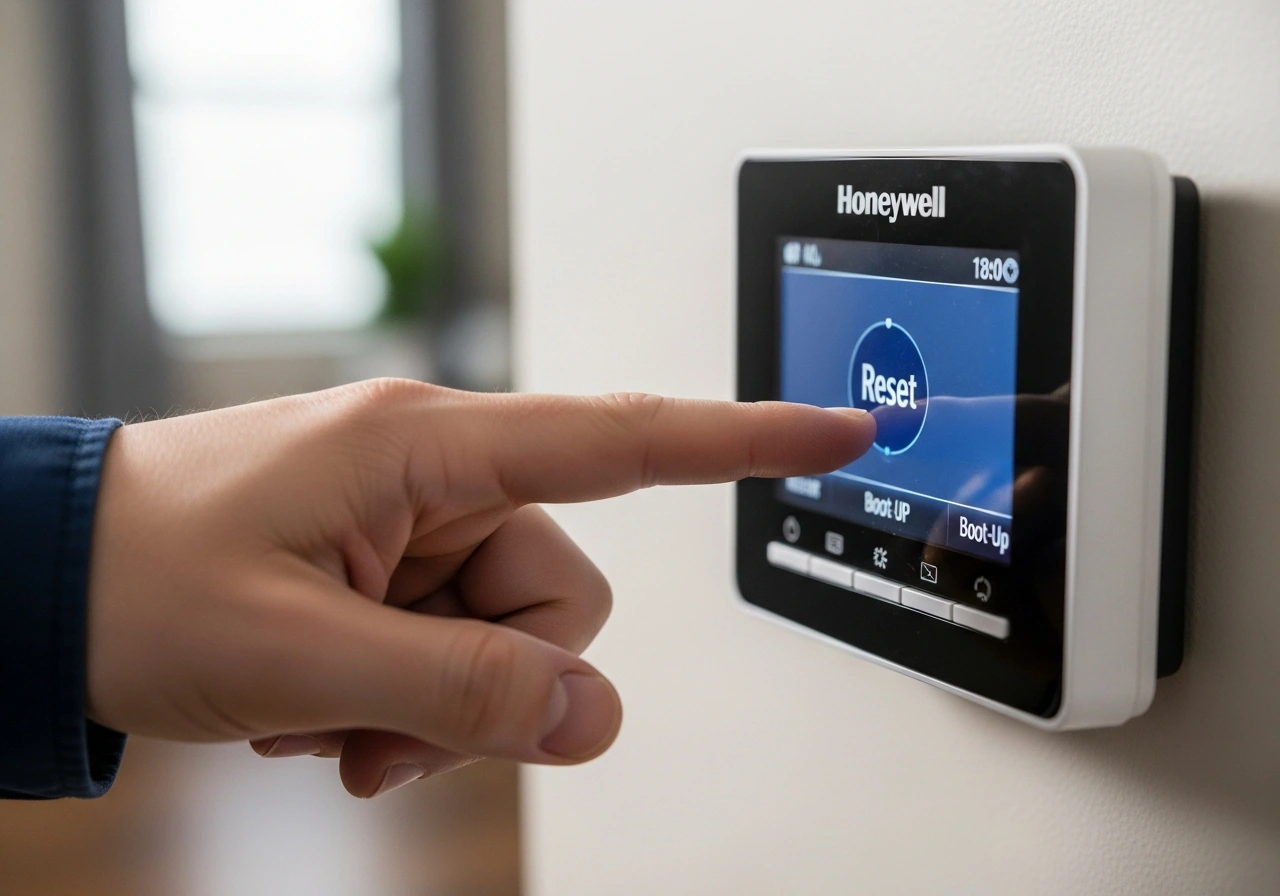
Dealing with a malfunctioning climate control system can be incredibly stressful, especially during extreme weather. If your heating or cooling system is acting up, learning how to reset Honeywell thermostat devices is often the quickest and most reliable solution.
As a certified HVAC technician with over a decade of field experience, I see these issues daily. I understand the frustration of standing in a freezing or sweltering house while staring at an unresponsive screen.
Often, the fix is much simpler than homeowners realize. It is a fundamental troubleshooting step that can save you a costly service call. Resetting your device essentially gives its internal computer a fresh start. It clears out temporary software glitches, memory errors, and connectivity hiccups that prevent normal operation.
Users typically need to perform a reset when the system stops following its schedule or becomes completely unresponsive. A quick reboot can often resolve issues like short-cycling, incorrect temperature readings, or a frozen display.
A Honeywell thermostat is a highly reliable piece of equipment, but like any electronic device, it occasionally needs a reboot. In this comprehensive guide, I will walk you through the exact steps to reset any model, getting your home comfortable again.
What Does Resetting a Honeywell Thermostat Do?
Before pressing any buttons, it is helpful to understand what is happening inside the device. Homeowners frequently ask me, “Will resetting my thermostat fix my heat?” “Will
The answer is often yes, provided the issue originates from the thermostat and not the furnace itself. A system reset clears out any software errors that might be preventing the unit from sending the “heat” signal to your HVAC equipment.
A standard reset clears temporary memory glitches and forces the device to recalibrate its sensors. This simple action often restores an unresponsive screen to its normal, working state.
If you opt for a full factory wipe, the process goes much deeper. It completely deletes your programmed schedules, Wi-Fi network credentials, and custom user settings.
By resetting the device, you are essentially restoring it to the exact state it was in when it left the factory. This blank slate allows you to reconfigure the system without any corrupted data interfering.
When Should You Reset Your Honeywell Thermostat?
You do not need to reset your system every time the house feels a little drafty. Knowing the appropriate situations to perform a reset will save you unnecessary reprogramming.
If your device is completely unresponsive to touch or button presses, a reboot is your best option. A frozen screen indicates that the internal microprocessor has stalled and needs to be power-cycled.
Another common scenario is dealing with the aftermath of a severe storm. Power surges and outages can confuse smart home devices, requiring a reset to restore proper communication with your HVAC unit.
You should also consider a reset after replacing the batteries if the low battery warning does not disappear. Sometimes the device needs a manual push to register that fresh power has been supplied.
Finally, if the screen displays an incorrect temperature or ignores your programmed schedule, a reset is in order. Wiping the memory clears out any corrupted scheduling files, causing the erratic behavior.
Where Is the Reset Button on a Honeywell Thermostat?
One of the most confusing aspects for homeowners is locating the actual reset mechanism. Many people ask, “Where is the reset button on my thermostat?”
The truth is, most modern models do not have a dedicated, physical “Reset” button on the casing. Manufacturers phased these out to prevent accidental wipes by children or routine cleaning.
Instead, the reset function is usually hidden within the digital menu settings or requires a specific sequence of button presses. You must navigate through the system setup options to find the factory restore feature.
On older mechanical models, there is no reset button at all, because there is no computer inside. For digital models without a menu, you often have to rely on a manual battery reset to drain the memory.
How Do I Manually Reset My Honeywell Thermostat?
If your screen is frozen and you cannot access the digital menus, you will need a physical bypass. When clients ask me, “How do I manually reset my Honeywell thermostat?” I teach them the battery trick.
First, gently pull the thermostat faceplate straight off the wall mount.
Next, remove the batteries from the back of the faceplate completely.
Now, insert the batteries backward, placing the negative ends where the positive ends should go. Leave them in this reverse position for five to ten seconds.
This process safely drains any remaining power from the internal capacitors, wiping the temporary memory.
Finally, remove the batteries, insert them correctly, and snap the faceplate back onto the wall. The device will boot up fresh.
How to Reset a Honeywell Thermostat to Factory Settings
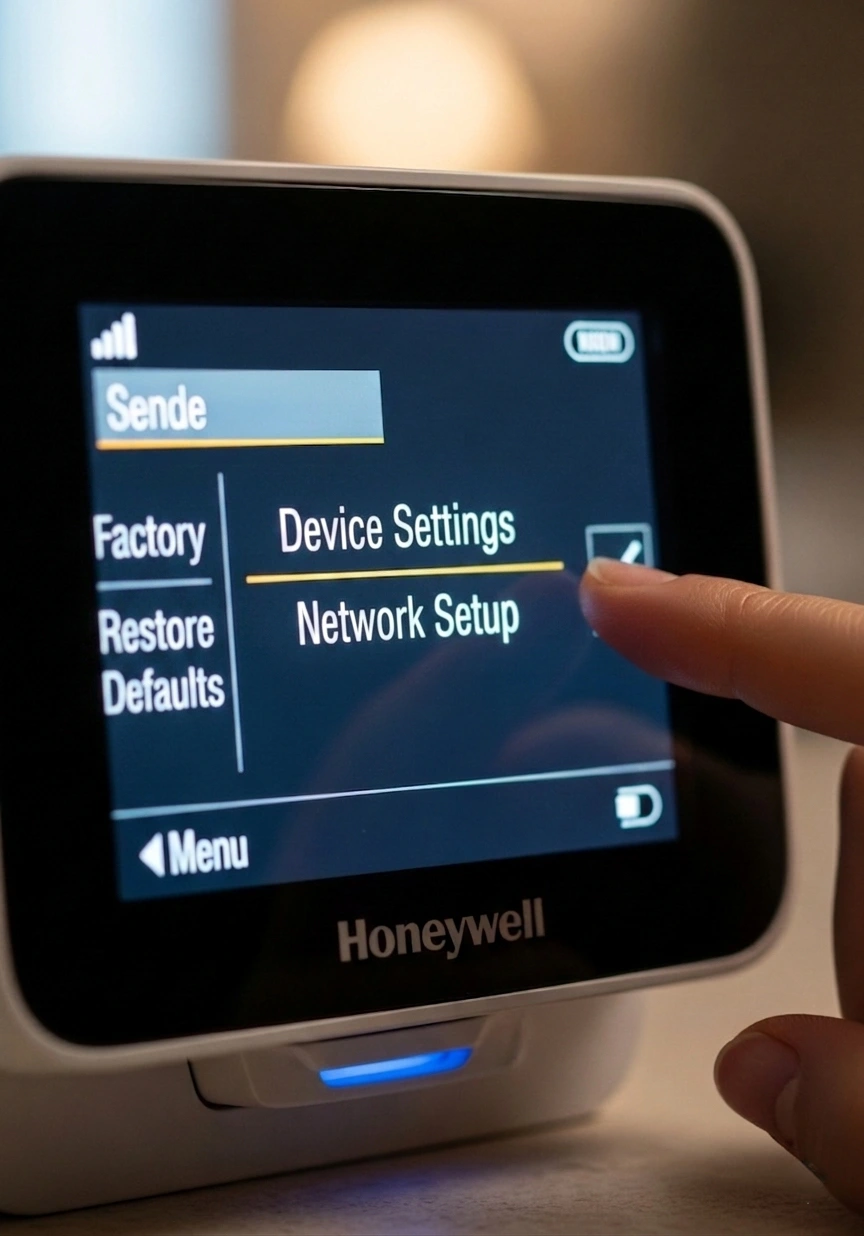
When standard troubleshooting fails, a complete memory wipe is necessary. Knowing how to reset a Honeywell thermostat to factory settings is crucial when moving or selling the unit.
To execute a Honeywell home thermostat factory reset, start by waking up the display screen.
Press the Menu button, which is usually located on the home screen or accessible via a central button.
Use the directional arrows to scroll through the options until you find the Preferences or Advanced Settings menu.
Select this, and then navigate down to the Restore Factory Defaults or Factory Reset option.
The screen will display a warning asking you to confirm the complete deletion of your data. Confirm the action, and the device will restart, returning to its original factory state.
How to Reset a Honeywell Thermostat Without a Reset Button
As mentioned earlier, not having a dedicated button is common. If you are wondering how to reset a Honeywell thermostat with no reset button, you have a few options.
The primary method is navigating through the digital menu to find the software reset option. This is the safest way to clear the device without physically removing it from the wall.
If the screen is frozen, you can perform the battery trick mentioned above. This how-to-reset-Honeywell-thermostat-without-a-reset-button method bypasses the software entirely by draining the physical hardware.
Alternatively, you can perform a full power cycle. Go to your home’s main electrical breaker box and flip the switch labeled “HVAC” or “Furnace” to the off position.
Leave the breaker off for five full minutes, then turn it back on to force a system-wide reboot.
How to Reset a Honeywell Thermostat Without Power
Sometimes the device goes completely dead, displaying a blank screen. Figuring out how to reset a Honeywell thermostat without power requires isolating the unit from the wall voltage.
First, pull the thermostat faceplate off the wall base to disconnect it from the HVAC system’s wiring.
Remove any internal backup batteries from the back of the display unit.
Leave the device completely unpowered on a table for at least fifteen minutes. This allows the internal circuitry to discharge completely.
After waiting, insert fresh, high-quality alkaline batteries and reattach the faceplate. This often kickstarts the microprocessor back to life.
How to Reset a Honeywell Thermostat After Replacing Batteries
A frequent annoyance is replacing dead batteries, only to find the “Low Battery” warning still flashing. Learning how to reset a Honeywell thermostat after replacing batteries is a quick fix.
Usually, the device just needs a moment to register the new voltage.
If the screen is unresponsive after new batteries are inserted, remove the faceplate again.
Double-check that the batteries are facing the correct direction and are firmly seated in their terminals.
If the error persists, use the reverse-battery trick for five seconds to clear the cache, then insert them correctly. The fresh voltage will now read accurately on the display.
How to Reset a Honeywell Thermostat After a Power Outage
Storms and power grid failures can wreak havoc on smart home connectivity. Knowing how to reset a Honeywell thermostat after a power outage ensures your home stays comfortable.
Power surges can cause the thermostat to lose its connection to your home Wi-Fi or internal HVAC board.
First, check your breaker box to ensure the furnace breaker did not trip during the surge.
If power is flowing, pull the thermostat off the wall, wait one minute, and reconnect it. This forces the device to handshake with the furnace control board again.
If the Wi-Fi is disconnected, navigate to the menu, select Wi-Fi setup, and reconnect to your router.
Reset Based on Button Types
Honeywell has produced dozens of variations over the decades. Sometimes, the easiest way to identify your reset method is by counting the physical buttons on the device.
Resetting the Honeywell Thermostat with 2 Buttons
Older, basic digital models often only feature an “Up” and “Down” arrow.
To reset these, you typically need to remove the faceplate and rely entirely on the reverse-battery method. There are no advanced menus to navigate on these simple units.
Resetting the Honeywell Thermostat with 3 Buttons
Models with three buttons usually have an up, a down, and a central Mode/Set button.
To initiate a reset, press and hold the Up and Down arrows simultaneously for about five seconds. The screen will change, allowing you to access installer setup codes to restore defaults.
Resetting the Honeywell Thermostat with 4 Buttons
Four-button models usually include Fan and System buttons alongside the temperature arrows.
Press and hold the System button (or the Fan and Up buttons together) until the screen flashes. Navigate through the numbered functions to find the reset code corresponding to your specific manual.
Model-Specific Reset Guides
The most accurate way to troubleshoot is by identifying your specific device. The following Honeywell thermostat models are the most common units I encounter in the field.
Resetting the Honeywell Thermostat Pro Series
The Pro Series includes popular models like the T4 and T6. Knowing how to reset Honeywell thermostat Pro Series devices is essential for modern homeowners.
Press the Menu button at the bottom of the screen.
Use the arrows to scroll right until you see Advanced Setup, then press Select.
Scroll until you find the Factory Reset option, select it, and confirm to execute a how-to-reset-Honeywell-Home-Pro-Series-thermostat procedure.
Resetting Honeywell Thermostat Pro Series T6
The T6 is a Wi-Fi-enabled smart device with a touch screen.
Press and hold the center of the screen or the menu button until the advanced menu appears.
Scroll through the options, select Reset, and then choose Factory. Confirm the prompt to wipe the device completely.
Resetting Honeywell Thermostat RTH221B1039
This is a highly popular, basic programmable model.
Since it lacks a complex menu, you must use the physical bypass method.
Remove the device from the wall, take out the batteries, and perform the reverse-polarity trick for five seconds to reset it.
Resetting Honeywell Thermostat TH5220D1003
This is a non-programmable FocusPRO model used in many commercial and residential spaces.
Press and hold the Up arrow and the Fan button simultaneously.
When the screen changes, press the Next button until you reach function number 710. Change the value to 1, and the device will reset.
Resetting Old Honeywell Thermostat Models
Older digital models can be tricky. When dealing with a how-to-reset-an-old-model-Honeywell-thermostat scenario, patience is key.
Most of these require removing the cover and finding a tiny, recessed reset pinhole near the battery compartment.
Use a paperclip to press and hold this internal button for five seconds. If there is no pinhole, rely on the battery removal trick.
How to Reset a Honeywell Home Thermostat
If you use the newer smart models integrated with the app, the process is streamlined. Knowing how to reset Honeywell Home thermostat devices ensures your smart ecosystem functions perfectly.
Wake up the touchscreen, and tap the Menu icon.
Scroll down to the Device Setup or Advanced Preferences tab.
Select Factory Reset and tap Yes to confirm. The Honeywell home thermostat’s how-to-reset process will sever the Wi-Fi connection and erase your account link.
How to Reset Honeywell Thermostat Password
Security features are great until you forget the PIN. Learning how to reset the Honeywell thermostat password locks is necessary if you buy a home with a locked unit.
If the device is locked, you must remove the faceplate and look at the back for a 4-digit date code.
Add the number 1234 to this date code (e.g., if the code is 1644, your unlock PIN is 2878).
Enter this new number into the locked screen to bypass the security. This is the official Honeywell home thermostat password reset method.
How to Reset the Honeywell Thermostat Schedule
If your heating is turning on at odd hours, you do not need a full factory wipe. You just need to know how to reset the Honeywell thermostat schedule settings.
Press the Menu or Schedule button on the main screen.
Look for an option that says Clear Schedule or Restore Default Schedule.
Select this, and the device will erase your custom times, replacing them with the standard 9-to-5 factory energy-saving template.
How to Reset a Honeywell Thermostat Touch Screen
Touch screens can sometimes fall out of calibration, registering taps in the wrong areas. Knowing how to reset Honeywell thermostat touchscreen models fixes this frustration.
Press and hold the Menu button for about ten seconds to enter the advanced diagnostics mode.
Look for the screen cleaning or calibration option.
If the screen is completely frozen, pull the faceplate off the wall to disconnect power, wait a minute, and replace it to force a hard reboot.
Troubleshooting: Honeywell Thermostat Issues
Resetting is a great tool, but diagnosing the root cause prevents the issue from returning. Proper troubleshooting and how to reset the Honeywell thermostat procedures save time.
If you are asking, “How do I fix an unresponsive Honeywell thermostat?” check your furnace breaker first. A tripped breaker cuts the 24-volt power supply to the wall unit.
If your Honeywell thermostat keeps restarting, you likely have a wiring issue. The “C-wire” (common wire) might be loose, causing the device to lose power intermittently and reboot.
If the system is not heating or cooling after a reset, the problem is likely with the HVAC equipment itself. Check your furnace filter, ensure the pilot light is on, and verify the AC condenser outside is clear of debris.
Reset Honeywell Thermostat Without Batteries
Many modern smart models do not use batteries; they rely entirely on the HVAC system’s power. If you need to know how to reset a Honeywell thermostat without batteries, you must use the breaker box.
Locate your home’s main electrical panel.
Find the switch controlling the furnace or air handler and flip it to the OFF position.
Wait for five full minutes, then flip it back ON. The thermostat will boot up as if it were just installed.
Advanced Reset Methods
For persistent, deep-rooted software glitches, you need to employ advanced tactics. These methods bypass user restrictions and target the core software.
Hard Reset Procedures
A hard reset is an aggressive factory wipe.
Navigate to the Advanced Setup menu by holding the center of the screen or specific button combinations.
Select the deepest level of reset available, often labeled System Setup Restore. This completely obliterates all user data and installer settings.
Manual Reset Instructions
When digital menus fail, physical intervention is required.
Following a manual reset, the Honeywell thermostat protocol involves removing power, draining capacitors, and resetting the hardware logic.
Always consult your specific Honeywell thermostat reset instructions manual if the reverse-battery trick does not work, as some commercial units have hidden jumper pins.
Step-by-Step Reset Instructions Summary
To recap, the most reliable method for most digital models is to follow this simple sequence.
If you forget how to reset my Honeywell thermostat, remember these core steps.
- Wake up the thermostat display.
- Press the Menu or System button.
- Scroll to Advanced Settings or Preferences.
- Select Restore Factory Defaults.
- Confirm the action and wait for the reboot.
What happens after a reset?
Once the reboot cycle finishes, your device is completely clean.
All your customized temperature schedules, Wi-Fi passwords, and Eco settings are permanently erased.
You will need to run through the initial setup wizard, select your system type (heat pump, conventional, etc.), and rebuild your daily schedules.
Frequently Asked Questions
How do I manually reset my Honeywell thermostat?
To manually reset most models without using the digital menu, pull the thermostat faceplate off the wall. Remove the batteries, place them in backward for five to ten seconds to drain the memory, then insert them correctly and reattach the faceplate.
Where is the reset button?
Most modern Honeywell thermostats do not feature a dedicated physical reset button to prevent accidental data loss. Instead, you must access the reset feature through the digital menu under ‘Advanced Settings’ or ‘Preferences’ or use the battery removal method.
Will resetting fix heating issues?
A reset can fix heating issues if the problem is caused by a frozen thermostat screen, a corrupted schedule, or a software glitch failing to send the signal. However, it will not fix mechanical furnace problems like a bad ignitor or a tripped breaker.
Why does my thermostat keep restarting?
If your device is stuck in a continuous restart loop, it is usually experiencing a power interruption. This is frequently caused by a loose C-wire (common wire), a dying internal battery, or a clogged furnace filter, causing the system to overheat and cut power.
Can I reset without batteries?
Yes, if your model runs on direct wiring (C-wire) without batteries, you can perform a reset by cycling the system power. Go to your home’s main electrical panel, turn off the HVAC breaker for five minutes, and then turn it back on to force a reboot.
Conclusion
As an HVAC professional, I advise homeowners to proceed with caution.
Always verify your specific model number before attempting complex button combinations. The model number is usually printed on the back of the faceplate.
Avoid performing full factory wipes frequently. If your device requires constant resetting to function, the hardware is likely failing and needs replacement.
Take a quick photo of your heating schedule with your smartphone before performing a reset. This makes reprogramming the unit much faster and less frustrating.
Evidence-Based References
- Exploring smart thermostat users’ schedule override behaviors and the energy consequences
- A Systematic Study for Smart Residential Thermostats
- Analyzing smart thermostat data to uncover trends in remote work behaviors
- Smart Thermostats in Rental Housing Units
- Temperature Sensing Optimization for Home Thermostat Retrofit